
1.ANTIVIRUS

- Klik 2x pada file applikasi yang telah anda download untuk mengexecution/memulai instalasi.
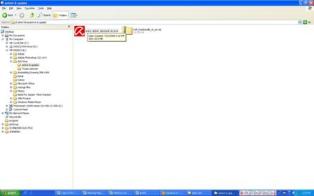
- langkah_1
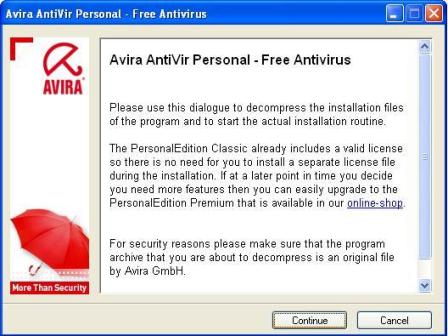
2. Click “Continue” pada button untuk proses selanjutnya.
- langkah_2
3. Biarkan prosess instalasi selesai dan akan muncul gambar seperti dibawah ini.
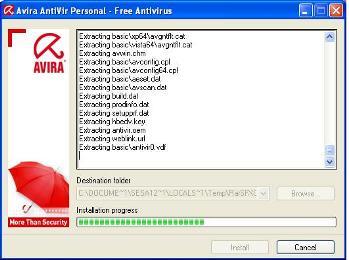
langkah_3
4. Berikutnya adalah proses setting/konfigurasi dari antivirus anda. Click netx untuk melangkah ke step selanjutnya.
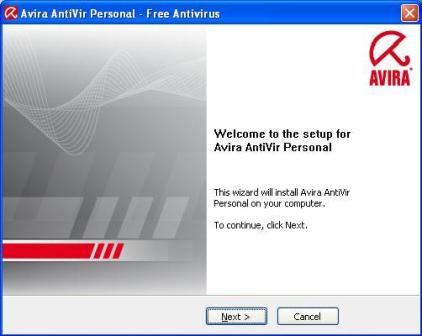
langkah_4
5. Configuration setting untuk menentukan apakah antivirus anda akan disetting pada mode mode default atau costumize.
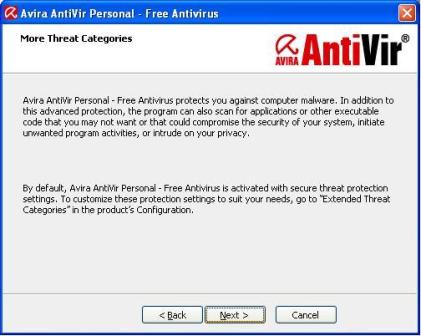
langkah_5
6. Anda akan ditawarkan Licence Agreement untuk melanjutkan prosess instalasi atau membatalkannya. Centang I agree dan klick next untuk melanjutkan prosess instalasi.
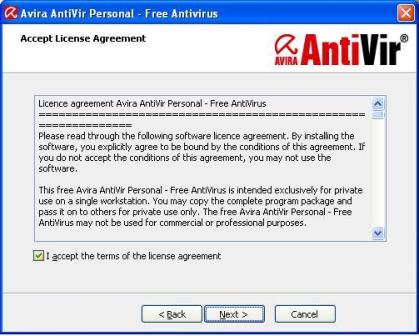
langkah_6
7. Instalasi akan memberitahukan bahwa antivirus yang anda install adalah versi gratis pribadi dan tidak dapat digunakan untuk kepentingan publik? Untuk melanjutkan klick next.
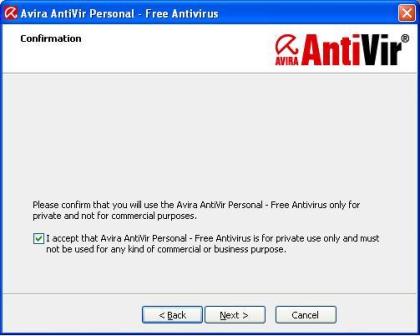
langkah_7
8. Pilih salah satu mode instalasi complete (keseluruhan) atau custom (sebagian/sesuai keinginan anda). Saya sarankan untuk memilih complete mode untuk lebih amannya. Dan agar semua sistem protek tertanam pada antivirus anda. Dan tekan next untuk melanjutkan instalasi.
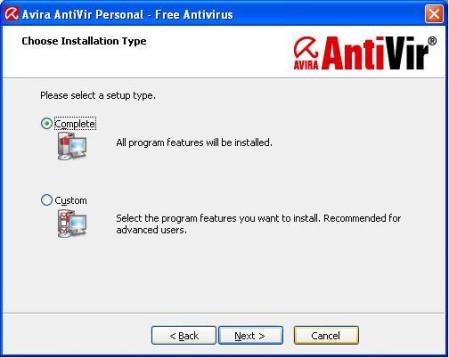
langakah_8
9. Dalam step ini anda akan di suguhkan pilihan apakah anda akan memakai antivirus ini dengan Registrasi Valid Lisence ataukah menggunaka Free Lisence dengan setting dan configurasi standart Avira. Untuk Free Mode uncheck check box bawah sehingga Registration Window non aktif. Kemudia click next.

Langkah 9
10. Selanjutnya system akan melakukan instalasi program tersebut, tunggu sampoai proses instalasi complete. Selama proses instalasi tampilan akan tampak seperti gambar berikut:

11. Setelah instalasi selesai anda bisa langsung menggunakan antivirus tersebut, atau berlanjut ke advance setting untuk melakukan secure scanning. Klik OK untuk melanjutkan proses scanning.

WIN RAR
WinRAR adalah aplikasi pembuat arsip RAR pada Windows versi 32-bit dan 64-bit. WinRAR sebuah software yang sangat bagus yang membolehkan pengguna untuk membuat, menangani dan mengontrol file berkas. WinRAR tersedia untuk beberapa sistem operasi, diantanya: Windows, Linux, FreeBSD, DOS, OS2, MacOS X.
WinRAR untuk Windows tersedia dalam dua jenis:
– Versi Grafik User Interface: WinRAR.exe;
– Versi Command Line Console (mode text): Rar.exe.
– Versi Grafik User Interface: WinRAR.exe;
– Versi Command Line Console (mode text): Rar.exe.

Fitur-Fitur WinRAR:
- Mendukung arsip *.RAR dan *.ZIP 2.0;
- Sangat canggih dengan algoritma kompres asli
- Memiliki algoritma khusus yang dioptimalkan untuk text, audio, graphics, 32-bit dan 64-bit Intel kompres executables;
- Memiliki antar muka Shell yang menyertai fasilitas drag-and-drop dan Wizard;
- Memiliki antar muka Command Line;
- Mampu menangani berkas: 7Z, ACE, ARJ, BZ2, CAB, GZ, ISO, JAR, LZH, TAR, UUE, Z;
- Mengkompres padat, dan dapat dinaikkan tingkat kompresi 10% s.d. 50% dari kompresi normal, terutama sekali ketika pengepakan sejumlah besar file kecil yang serupa;
- Dapat membuat arsip-arsip multivolume;
- Dapat membuat arsip yang mampu mengekstrak dirinya sendiri (self-extracting), dapatjuga multivolume, menggunakan modul SFX bawaan atau modifikasi;
- Dapat memulihkan (recovery) arsip yang rusak;
- Dapat memulihkan (recovery) arsip multivolume dan merekontruksi bagian yang hilang dari arsip multivolume;
- Mendukung nama file Unicode;
- Dan memiliki banyak fasilitas lainnya, seperti: encryption, archive comments, error logging, dll.
windows 7
1. Silahkan masukkan DVD windows 7 yang anda miliki, dan jangan lupa untuk booting ke media yang kita pilih, dan silahkan unggu loading selsesai.

2. Setelah starting windows selesai akan keluar gambar seperti di bawah dan pilih format bahasa, waktu, mata uang dan format keyboard. setelah itu klik next.

3.Silahkan klik Install now.
4.Silahkan baca lisensi produknya, jika ingin cepat langsung centang "I accept the license terms" lalu klik Next.

5.Ada 2 pilihan untuk upgrade atau costom. Jika upgrade untuk memperbarui window 7 anda sebelumnya. Pilih costom jika belum terinstall windows 7 di PC atau laptop anda.

6.silahkan pilih di partisi mana anda akan install windows? saya menyarankan untuk membagi partisinya untuk klik "Drive opions(advence)" dan pilih di partisi mana yang ingin di install lalu next.

7.Tunggu beberapa menit untuk proses penyalinan data di lakukan sampai selesai.

8.Nah setelah proses berakhir komputer akan meminta restart, silahkan masuk ke bios dan ubah proses dari DVD ke Hardisk/partisi yang telah di copykan windows.
9. Masukkan nama pengguna/nama yang anda inginkan lalu next.


11. Pada saat seperti gambar di bawah anda bisa langsung klik next. tapi windows hanya berjalan selama 30 hari saja. jika ingin full silahkan masukkan kunci produknya.

12. Pilih ask me later agar windows anda tidak meminta untuk selalu update.

13. Pilihlah zona waktu, zona waktu indonesia adalah +7, dan kemudian next.
14. Jika anda terhubung ke jaringan apapun, ia akan meminta Anda untuk menetapkan lokasi jaringan.


Review
Microsoft a history of large, successful product development, not only thanks to the Operating Systems they release, but also due to the commercial Office packages. Microsoft Office Professional 2007 represents the evolution of the classic way of working, creating innovation with the visual aspect and then charming users with the options and features it offers. The twelfth Office edition appears after a gap of 4 years without any new releases for one of the main Microsoft franchises. With the 2007 version, the Redmond Company includes general improvements for all the included applications, as well as some new ones like Groove for the Ultimate version.
The professional version of this Office package includes the basic software components for all kinds of office work, as well as some applications that will enhance and supply the download of external programs. In this edition, you will find Microsoft Word, Excel,PowerPoint and additionally Microsoft Publisher and Access. Each one of these applications has become a standard in the software industry, being complete programs that will solve the necessities in these fields. The Office product includes all the elements needed to run the installation and other Microsoft software to make the most of your computer like SQL Server Express and .NET Framework 2.

When you put your hands on the suite for the first time, you will see that the design has changed completely to offer an interface with fewer elements to show at the same time. ThisFluent User Interface, later known as Ribbon UI, offers the possibility of changing the options that appear on the upper side of the program you are using. This way, any of the applications that are part of MS Office Professional 2007 can be customized according to their main uses in an easier way for you.
Compatible formats have changed along with the times. Although the old .ppt, .xls or .doc formats are still being used; the new documents based on the open XML format offer a better way to work. Efficiency is important, and with this open type of archive, you can make sure they can be used even if it gets corrupted, thanks to the way the information is saved in different modules within the same archive. This also makes the files a bit smaller than older formats, but bear in mind that they won’t be compatible with previous Office versions unless they download a compatible addon to enable the capability read and modify of these archives.
Meet the Ribbon in the screen

The key new feature of this interface comes when you have to check advanced functions that with previous editions, were only available through difficult menus. In this sense,Microsoft has managed to gather all the options in different tabs that offer the main functions and advanced options. For those users that have never seen something similar may be a bit shocked leaving behind the old menu style that was simpler, but once you get used to it, you'll find it works better, not only for its speed but also its usability.
Almost all of the tools included in Microsoft Office Professional 2007 have the same Ribbon interface style, but it is specifically customized depending on the functions you need for the program. For example, in case of Microsoft Word, you have the usual Insert, References, and Page Layout tabs as well as the main general menu clicking on the Microsoft Office Professional 2007 icon located at the left side and the possibility of managing the Add-Ins that you can download and install as you need for increasing the application’s functions. If you select one of these tabs, a new section below will appear with all the relevant functions, getting rid of the old contextual menus.
Ribbon Interface gives the importance to what really matters; that is the work space
One of the key features of this Ribbon Interface is that it gives the importance to what really matters; that is the work space, optimizing this space by keeping menus to the minimum size possible with a clean view. Although this interface makes the work space seem to be a little smaller when you have it fully deployed, you can minimize its size with an option located in the Quick Access toolbar. Additionally, you can change the options the Fluent User Interface offers by default editing each part. This way you can configure almost everything, making this one of the most dynamic and customizable Office editions.
Word, write this way

Microsoft Word is probably the quintessence of the Office package for the average user. This powerful text processor has been physically changed just like the rest of its software partners, but it also includes some new options to enhance the writing process, such as making changes immediately. Options like the Live Preview, which allows you to check how a format change will affect to your text just by passing the mouse arrow over the style you want, makes it quicker to check out possible changes in Word instantly, instead of wasting time by modifying the document directly.
The overall engine has been improved, offering a better way of working without delays and smoothly enough to guarantee less annoyances
The spell checker function has been improved adding a new function, highlighted with a blue underline, which warns about contextual misuses of correctly spelled words. This way, the program, can efficiently correct homophone words that may seem equal for speakers such as ‘to’ and ‘too’ or ‘lose’ and ‘loose’ in a sentence. Microsoft Word has also integrated a translation tool for U.S. English, French and International Spanish in the default pack, with more languages able to be added when additional complements are downloaded free with the official support.

Academic writers will be thankful for the addition of the most commonly used citation formats included a tool for directly inserting the right way to make bibliography and text citations for the MLA, Chicago and APA styles. The new opportunity to blog directly from this Word utility makes it pretty useful for those authors that want to avoid added steps. This time you only need to configure the application with the service you use such as SharePoint, WordPress or Windows Live Spaces and you will be able to upload the texts you create directly to your online site.
The overall engine has been improved, offering a better way of working without delays and smoothly enough to guarantee no annoyances. The way you can insert images into the text, as well as other multimedia elements, and move them in a more efficient way than in previous editions where these elements could mess up your whole work. SmartArt is a new option for graphic elements. With this editable diagram function you can create the graphics you want much easier than before, include it within your text and modify it the way you really need.
Outlook, connected to everyone

Microsoft Outlook might be the general Office component most often used, since users can arrange meetings and manage contact lists, but moreover Outlook is an email client. It is by far, the application that has changed the least of the suite since the Ribbon Interface has only been included for the creation of new messages and not in the main window. However, this feature doesn’t mean that Outlook hasn’t changed at all; the main interface includes a To Do bar with your important events included.
This software requires, at a minimum, using Exchange 2000 or later for the mail service, since Exchange 5.5 has finally been dropped. The advantage of this application is a better form of manually managing your emails than online, HTML-based services. In Outlook, you can save your messages to your computer, store them in a local file and thus access them without being constantly connected to the Internet, just getting the permissions to log in with your personal account. For performing searches, Outlook has been sped up using the features of Windows Search APIs, which directly indexes the content of your messages, showing the results of your search in a blink of an eye.
You can push content to your mobile phone, to have your information wherever you are
The new key features included in Outlook take it to another level, being able to read RSS feeds directly so that you can be informed automatically of the subjects you are interested in. Additionally, you can push this content to your mobile phone, to get information wherever you are. This comes in handy due to the synchronization of the email service with mobile phones, being able to send and manage SMSs and text-messagesusing Exchange Server 2007 Unified Messaging service. With Postmark, a new function included in Outlook 2007, you can avoid receiving spam more efficiently without being aware of the extra processes the computer undertakes.
Excel, the spreadsheet utility

One of the utilities that have benefited from the interface change is Microsoft Excel. The way it works is quite similar to the way it used to be, but now for instance, some of its functions have been simplified to the Ribbon style. This way, the modification of cell formats is now quicker and more visual thanks to the buttons you find in the upper half. The spreadsheets have grown in rows and columns from the former 65,536 by 256 to the current 1,048,576 by 16,384, format that offers more than enough for most project books. The main previous features are same in this edition, with better performance and much larger Excel files.
The benefits of this edition are obvious when you take a look at the possibilities the Ribbon buttons offer. This new method allows the user to avoid investigating further in the dialog of ‘Format Cells’. The introduction of Conditional Formatting gives the user the opportunity of using three new features for Excel 2007, Icon Sets, Color Scales and the Data Bars. These formats allow for creating more intuitive documents thanks to the visual capacities included. Automatic grouping values in colors and icons depending on their relation helps in a great way, as well as being a feature of showing how the value of a singular cell contribute to the whole group in which it belongs.
The best part comes once you take a look at the Formulas tab and find an automatic way of including them in your spreadsheet in an easier way. From simple functions to financial utilities, Excel 2007 also includes a feature for auto-completing formulas according to the characters presented. Thanks to the CUBE functions you can import data from external services like SQL Server Analysis Services, which makes it easier to create advanced reports including options such as PivotTables and filters to order the information you want to check.
PowerPoint, the slideshow must go on

Apart from the redesigned interface introduced with the rest of the utilities in Microsoft Office Professional 2007, PowerPoint has been improved in its rendering tools and the overall performance, allowing you to manage bigger files than before, and very smoothly. The inclusion of support for audio files such as .mp3 or .wma enhances the variety of the slideshows you can create; also enabling you to include video clips for more interesting presentations and enhance the variety and possibilities for your documents.
In general terms, there are no great innovations on PowerPoint 2007 since there was no need to include many more improvements than a better performance with new multimedia elements. Microsoft has increased the support for tables imported from Excel or for images imported directly from a camera or a scanner without first passing through another program.
Publisher, professional design

Microsoft Publisher 2007 is, without any kind of doubt, the software that has the least amount of changes in this new version. The page designer has always been an independent heavyweight, but since it joined the Office package, Microsoft seems to have stopped spending too much time on this piece of software. With no Ribbon interface design or even the useful Live Preview to check how the changes you want to introduce will finally look, Publisher 2007 only improves its performance and adds some minor features that can make things work a little better for the average user.
Publisher 2007 only improves its performance and adds some minor features that can make things work a little better for the average user
The utility can convert the files with work with into another publication format, from a newsletter to web page archive type. Publisher also includes an option to save your documents as a PDF for conserving the documents’ original quality for print. Templates are automatically filled with important information as long as you have included it, such as the name or location of the company or the business’ address for which you are preparing the design. The content that has been used recently can be immediately accessible through the Content Store menu.
Access, database management

Finally, Microsoft Access gets the new Ribbon Interface as an improvement on the previous Microsoft Office Professional 2007 utilities, featuring several enhancements. In this edition, anew database format, ACCDB, has been introduced natively. This new format allows you tolink SharePoint lists as well as include complex data types and files for the same field. Additionally, the user will find a new field, File Attachment, which allows you to work in a dynamic way with complex data.
Microsoft has included the possibility of synchronizing the application with SharePoint Services 3.0 for multiple features such as to serve as a backup server without worrying about the security of your document, both locally or online. Accessing 2007 has not being designed especially for heavy users, and this time it includes a gentler way of working for first timers in order without making it too difficult. This way we can say that Access 2007 has opened up to an medium-level audience as a friendlier software.
Microsoft Office Professional 2007 Features

The list of key features of Microsoft Office Professional 2007 can be found below:
- Professional edition product includes Microsoft Word, Excel, PowerPoint, Access, Publisher and Outlook
- New Microsoft Office Professional 2007 Ribbon interface allows you to easily access additional options without opening new menus, all in a single window
- Improved accessibility for the average user thanks to the Office button for general options
- Addition of the new Live Preview that allows users to check how a text format change will affect the entire document
- Overall performance has been revised and improved for offering better multimedia management embedded in the documents you create
- Office Open XML format introduced as the default format for smaller files and additional features
- SmartArt includes a great variety of diagrams for adding to different files with 3D effects along with rendering options
For further details about the Office package before the download, be free to visit its creator’s website.
System Requirements
Here are the minimum system requirements for your computer to run this Microsoft Office Professional 2007 product:
- Operating System: Windows XP or later
- CPU: 1GHz processor or faster
- Memory: 512 MB RAM
- Size: 2GB free space
- 1,024 x 768 screen resolution
ADOBE RAEDER

Adobe reader yang dulunya bernama acrobat reader adalah salah satu perangkat lunak dari keluarga Adobe Acrobat yang dikembangkan oleh Adobe system. Pengguna Acrobat Reader dapat membaca, memberi notasi, mencari, verifikasi, menandai secara digital dan mencetak data dengan format Portable Document Format atau PDF . Acrobat Reader didesain dengan layout menyerupai kertas konvensional. Adobe Reader telah hadir lebih dari satu dekade dan merupakan aplikasi pembaca data PDF pertama sehingga mudah digunakan. Adobe Reader adalah aplikasi pembaca data PDF yang dapat membuka dan dan dikooperasikan dengan semua data PDF. Adobe reader sudah mengeluarkan beberapa versi .
Salah satunya adalah Adobe Reader 9 . Software Adobe Reader 9 adalah standar global untuk sharing dokumen elektronik. Ini adalah satu-satunya penampil file PDF yang dapat membuka dan berinteraksi dengan semua dokumen PDF. Gunakan Adobe Reader untuk melihat, mencari, digital sign, verifikasi, mencetak, dan berkolaborasi pada file Adobe PDF.
Adapun Kegunaan Adobe Reader 9 secara umum adalah :
- Immersive Flash video, konten dan aplikasi dengan modus layar penuh.
- Low bandwidth, video berkualitas tinggi dengan teknologi kompresi canggih.
- Real-time efek dinamis dengan filter untuk Blur, DropShadow, Glow, Bevel, Gradient Glow, Gradient Bevel, Displacement Map, lilitan, dan Color Matrix.
- Komposisi media yang inovatif dengan 8-bit video alpha channel.
- Blend modes, radial gradient, dan stroke perangkat tambahan.
- Gambar tambahan format: GIF, Progressive JPEG, dan PNG.
Pengertian browser adalah perangkat lunak yang berfungsi menampilkan dan melakukan interaksi dengan dokumen-dokumen yang disediakan oleh server. Awalnya, web browser berorientasi pada teks dan belum dapat menampilkan gambar. Namun, web browser sekarang tidak hanya menampilkan gambar dan teks saja, tetapi juga memutar file multimedia seperti video dan suara. Web browser juga dapat mengirim dan menerima email, mengelola HTML, sebagai input dan menjadikan halaman web sebagai hasil output yang informative.
Dengan menggunakan web browser, para pengguna internet dapat mengakses berbagai informasi yang terdapat di internet dengan mudah.
Pengertian browser tersebut sejalan dengan istilah “browse” dalam bahasa inggris yang artinya melihat-lihat atau membaca-baca. Arti browser oleh beberapa kalangan disamakan pula sebagai “perambah”.
*PENGERTIAN BROWSER MENURUT PARA AHLI*
-GUSTAF PAHALA FRANS
Browser merupakan aplikasi yang digunakan untuk mengoperasikan internet, terutama sebagai media untuk melakukan browsing, surfing, dan melakukan aktivitas di dunia maya lainnya
-LIA KUSWAYATNO DKK
Browser merupakan perangkat lunak yang digunakan untuk membuka website dengan cara mengisi alamat situs tersebut pada kotak address
Berikut adalah browser populer di dunia versi Hanya Blog Biasa beserta sedikit penjelasannya :
10. PhaseOut
PhaseOut adalah internet browser yang memungkinkan beberapa pencarian dengan mesin pencari utama hanya dengan satu klik.
Situs : http://www.phaseout.net/
Dengan menggunakan web browser, para pengguna internet dapat mengakses berbagai informasi yang terdapat di internet dengan mudah.
Pengertian browser tersebut sejalan dengan istilah “browse” dalam bahasa inggris yang artinya melihat-lihat atau membaca-baca. Arti browser oleh beberapa kalangan disamakan pula sebagai “perambah”.
*PENGERTIAN BROWSER MENURUT PARA AHLI*
-GUSTAF PAHALA FRANS
Browser merupakan aplikasi yang digunakan untuk mengoperasikan internet, terutama sebagai media untuk melakukan browsing, surfing, dan melakukan aktivitas di dunia maya lainnya
-LIA KUSWAYATNO DKK
Browser merupakan perangkat lunak yang digunakan untuk membuka website dengan cara mengisi alamat situs tersebut pada kotak address
Berikut adalah browser populer di dunia versi Hanya Blog Biasa beserta sedikit penjelasannya :
1. Firefox
Mozilla Firefox (aslinya bernama Phoenix dan kemudian untuk sesaat dikenal sebagai Mozilla Firebird) adalah penjelajah web antar-platform gratis yang dikembangkan oleh Yayasan Mozilla dan ratusan sukarelawan.
Versi 3.0 dirilis pada 17 Juni 2008.
Situs : http://www.mozilla.com/firefox/
Mozilla Firefox (aslinya bernama Phoenix dan kemudian untuk sesaat dikenal sebagai Mozilla Firebird) adalah penjelajah web antar-platform gratis yang dikembangkan oleh Yayasan Mozilla dan ratusan sukarelawan.
Versi 3.0 dirilis pada 17 Juni 2008.
Situs : http://www.mozilla.com/firefox/
2. Google Chrome
Google Chrome adalah sebuah penjelajah web sumber terbuka yang dikembangkan oleh Google dengan menggunakan mesin rendering WebKit.
Proyek sumber terbukanya sendiri dinamakan Chromium.
Situs : http://www.google.com/chrome
Google Chrome adalah sebuah penjelajah web sumber terbuka yang dikembangkan oleh Google dengan menggunakan mesin rendering WebKit.
Proyek sumber terbukanya sendiri dinamakan Chromium.
Situs : http://www.google.com/chrome
3. Internet Explorer
Internet Explorer, disingkat IE atau MSIE, adalah sebuah browser web proprieter yang gratis dari Microsoft.
Situs :http://www.microsoft.com/windows/products/winfamily/ie/default.mspx
Internet Explorer, disingkat IE atau MSIE, adalah sebuah browser web proprieter yang gratis dari Microsoft.
Situs :http://www.microsoft.com/windows/products/winfamily/ie/default.mspx
4. Opera
Opera adalah penjelajah web dan paket perangkat lunak Internet antar-platform.
Opera terdiri dari kumpulan perangkat lunak untuk Internet seperti penjelajah web, serta perangkat lunak untuk membaca dan mengirim surat elektronik.
Situs : http://www.opera.com/download/
Opera adalah penjelajah web dan paket perangkat lunak Internet antar-platform.
Opera terdiri dari kumpulan perangkat lunak untuk Internet seperti penjelajah web, serta perangkat lunak untuk membaca dan mengirim surat elektronik.
Situs : http://www.opera.com/download/
5. Safari
Safari adalah sebuah penjelajah web buatan Apple Inc. yang awalnya ditujukan khusus bagi sistem operasi Mac OS.
Safari dibundel bersama Mac OS X dan merupakan penjelajah web default di sistem operasi tersebut sejak Mac OS X v10.3.
Situs : http://www.apple.com/safari/download/
Safari adalah sebuah penjelajah web buatan Apple Inc. yang awalnya ditujukan khusus bagi sistem operasi Mac OS.
Safari dibundel bersama Mac OS X dan merupakan penjelajah web default di sistem operasi tersebut sejak Mac OS X v10.3.
Situs : http://www.apple.com/safari/download/
6. Maxthon
Maxthon adalah browser yang menggunakan engine milik IE, Trident, dan 100% kompatibel dengan IE, ditambah dengan berbagai fitur yang tidak dimiliki oleh IE.
Situs : http://www.maxthon.com/
Maxthon adalah browser yang menggunakan engine milik IE, Trident, dan 100% kompatibel dengan IE, ditambah dengan berbagai fitur yang tidak dimiliki oleh IE.
Situs : http://www.maxthon.com/
7. Flock
Flock adalah sebuah penjelajah web yang berspesialisasi pada penyediaan fitur jaringan sosial dan fitur Web 2.0 lain pada tampilan antarmukanya.
Browser ini dibuat menggunakan codebase Mozilla’s Firefox Pada tanggal 16 Juni 2008, Flock 2 yang menggunakan Mozilla Firefox 3 sebagai basisnya, diluncurkan dengan status open beta.
Situs : http://flock.com/
Flock adalah sebuah penjelajah web yang berspesialisasi pada penyediaan fitur jaringan sosial dan fitur Web 2.0 lain pada tampilan antarmukanya.
Browser ini dibuat menggunakan codebase Mozilla’s Firefox Pada tanggal 16 Juni 2008, Flock 2 yang menggunakan Mozilla Firefox 3 sebagai basisnya, diluncurkan dengan status open beta.
Situs : http://flock.com/
8. Avant Browser
Avant Browser adalah browser yang cepat, stabil, user-friendly, dan merupakan multiwindow browser.
Memang engine yang dipakai adalah engine IE. Akan tetapi Avant Browser memiliki kelebihan dibandingkan IE.
Situs : http://www.avantbrowser.com/download.html
Avant Browser adalah browser yang cepat, stabil, user-friendly, dan merupakan multiwindow browser.
Memang engine yang dipakai adalah engine IE. Akan tetapi Avant Browser memiliki kelebihan dibandingkan IE.
Situs : http://www.avantbrowser.com/download.html
9. Deepnet Explorer
Deepnet Explorer adalah sebuah penjelajah web, Deepnet Explorer sudah mendukung fitur tab browsing untuk halaman multiple
Situs : http://www.deepnetexplorer.com/
Deepnet Explorer adalah sebuah penjelajah web, Deepnet Explorer sudah mendukung fitur tab browsing untuk halaman multiple
Situs : http://www.deepnetexplorer.com/
10. PhaseOut
PhaseOut adalah internet browser yang memungkinkan beberapa pencarian dengan mesin pencari utama hanya dengan satu klik.
Situs : http://www.phaseout.net/
Internet Download Manager adalah sebuah alat yang memudahkan kita untuk mengambil data dari internet atau bisa disebut juga dengan istilah “:Download”. Beda lagi kalau kita sedang mengunggah data dari PC atau laptop kita, itu dinamakan Mengaupload. Banyak sekali kegunaan IDM bagi kita, diantaranya memudahkan kita untuk mengambil data dari internet yang berupa file PDF, musik, vidio dan yang lainnya. Dengan IDM tersebut kita bisa mengambil data dari internet dengan cepat dan mudah tanpa menunggu waktu yang lama. Nah inilah salah satu manfaat dari IDM. coba anda banyangkan seandainya saja anda sedang mendonwload video dari you tobe yang kapasitasnya 25 MB pasti jika menggukan secara menual mungkin melalui rapidshare pasti waktunya bisa mencapai setengah jam, tapi jika anda menggunkan tool IDM ini waktu untuk mendownload dengan kapasitas sebanyak itu pasti cuma sekitar 10 -15 menit gak yampai.
Dengan menggunakan tool IDM banyak kegunaan yang kita dapatkan, (1) IDM akan mempermudah pekerjaan kita dan mempersingkat waktu yang harus kita lewatkan, semisal kita mendapat tugas dari kampus untuk mencari tugas dari kampus berupa materi kuliah, dan kebetulan kita sering mendapat file PDF, dengan IDM ini segala urusan download akan beres tanpa membutuhkan waktu yang lama. (2) mempermudah kita saat mau mengambil video dari yuo tobe atau lagu berupa MP3, MP4 dan yang lainnya. nah inilah manfaat yang dapat kita dapatkan jika kita menggunakannya.
nah sekarang saya sedikit akan menjelaskann, cara mempercepat download dengan IDM. jika kita pernah instal IDM pada komputer kita atau laptop, biasanya setingannya masih standar atau jika sering memperhatian saat proses download, default max conn numbernya masih 8 dan speednya 10 Mbs nah inilah nanti yang akan kita rubah agar agar kecepatan donwloadnya bisa seperti larinya kuda. langsung saja ini tips Cara Bagaimana cara mempercepat download dengan IDM. Sebelum saya jawab, pasti semua orang sudah pada tahu apa itu IDM atau Internet Donwload Manager. IDM atau Internet Download Manager adalah sebuah alat yang memudahkan kita untuk mengambil data dari internet atau bisa disebut juga dengan istilah “:Download”. Beda lagi kalau kita sedang mengunggah data dari PC atau laptop kita, itu dinamakan Mengaupload. Banyak sekali kegunaan IDM bagi kita, diantaranya memudahkan kita untuk mengambil data dari internet yang berupa file PDF, musik, vidio dan yang lainnya. Dengan IDM tersebut kita bisa mengambil data dari internet dengan cepat dan mudah tanpa menunggu waktu yang lama. Nah inilah salah satu manfaat dari IDM. coba anda banyangkan seandainya saja anda sedang mendonwload video dari you tobe yang kapasitasnya 25 MB pasti jika menggukan secara menual mungkin melalui rapidshare pasti waktunya bisa mencapai setengah jam, tapi jika anda menggunkan tool IDM ini waktu untuk mendownload dengan kapasitas sebanyak itu pasti cuma sekitar 10 -15 menit gak yampai.
Dengan menggunakan tool IDM banyak manfaat yang kita dapatkan, (1) IDM akan mempermudah pekerjaan kita dan mempersingkat waktu yang harus kita lewatkan, semisal kita mendapat tugas dari kampus untuk mencari tugas dari kampus berupa materi kuliah, dan kebetulan kita sering mendapat file PDF, dengan IDM ini segala urusan download akan beres tanpa membutuhkan waktu yang lama. (2) mempermudah kita saat mau mengambil video dari yuo tobe atau lagu berupa MP3, MP4 dan yang lainnya. nah inilah manfaat yang dapat kita dapatkan jika kita menggunakannya.
nah sekarang saya akan sedikit menjelaskan cara mempercepat download dengan IDM. jika kita pernah instal IDM pada komputer kita atau laptop, biasanya setingannya masih standar atau jika sering memperhatian saat proses download, default max conn numbernya masih 8 dan speednya 10 Mbs nah inilah nanti yang akan kita rubah agar agar kecepatan donwloadnya bisa seperti larinya kuda. langsung saja ini tips Cara Mepercepat Donwload Dengan IDM:
- klik IDM di try icon
- klik Option.
- Pada Connection/Speed, pilih Other dan pada Default Max conn.number pilih 16 dan tutup kembali IDM.
- Jalankan Regedit>HKey_Current_User>Software>Download Manager> (lihat jendela kanan) Connection Speed>double click>pilih decimal> isi dengan 999999999>OK. (Untuk menjalankan regedit bisa melalui run di Start dan ketikkan Regedit) kenapa angka yang saya pilih adalah sembilan, karena angka yang paling tinggi adalah 9 bukannya 10 tapi 9. setelah itu tutup Regeditnya dan anda sudah bisa mulai mendonwload sepuasnya.
Cara menginstal Adobe Photoshop CS3.
1. Pertama, buka file Adobe Photoshop CS3.

2. Kemudian, pilih setup aplikasi untuk menginstal Adobe photoshop CS3

3. Tunggu sesaat.

4. Atur bahasa yang anda gunakan, lalu pilih Accept

5. Pilih lokasi penginstalan yang anda inginkan, lalu pilih Next

6. Setelah itu, pilih Instal

7. Tuggu proses instalisasinya selesai

8. Setelah instalasi selesai, pilih Finish

9. Saat kita buka Adobe potoshopnya, kita disuruh pilihan untuk memilih;
- I have a serial number for this product.
Jika kita memilih ini, kita dapat memasukkan serial number dengan meCrack file induknya. Dengan cara seperti dibawah ini.
- I want to try Adobe Photoshop CS3 free for 30 days.
Jika kita memilih ini, kita dapat menggunakan Adobe photoshop tersebut selama 30 hari saja.

10. Untuk menCrack file Adobe Photoshop CS3 tersebut, buka File induk , kemudian pilih file crack

11. kemudian, copy icon aplikasi Photoshop

12. Setelah di copy datanya tadi, buka Disk C yang kita instal tadi. Lalu puluh folder Program file

13. Lalu pilih folder Adobe.

14. Kemudian pilih lagi folder Adobe Photoshop CS3

15. Lalu kita Paste pada folder tersebut.

16. Ada pilihan dalam pengopian tersebut.
- Copy and replace
Kita menyalin data dan kita mengganti file yang sama dan yang sudah ada sebelumnya.
- Don’t copy
Jangan mengnyalin data
- Copy, but keep both files
Kita menyalin data, tetapi kita tidak mengganti dan merubah data yang sudah ada sebelumnya

17. Jika kita memilih Copy and replace, kemudian kita pilih continue

18. Kemudian buka icon Adobe Photoshop

19. Adobe Photoshop siap digunakan


Cara Install CorelDraw X6 Dengan Keygen
Cara Install CorelDraw X6 Dengan Keygen, Bagi yang suka desain grafis pasti tidak asing dengan software atau aplikasi yang satu ini, coreldraw memang sangat cocok untuk yang suka hobi corat-coret dengan variasi text style yang bervariatif, kalo photoshop mungkin lebih cocok di fotografi namun coreldraw tentu juga memiliki beberapa kelebihan yang tidak dimiliki oleh photoshop, jadi saya rasa bagi yang suka desain grafis dengan memiliki skill menggunakan kedua aplikasi ini adalah kombinasi yang sangat sempurna, namun yang perlu anda ketahui kedua software ini ternyata tidaklah gratis, namun semua berbayar, jika anda mendownloadnya dan langsung menginstallnya secara langsung maka software yang anda gunakan hanyalah trial dan tidak dapat digunakan secara permanent, solusinya tentu anda harus membayar jika ingin menggunakan kedua aplikasi tersebut secara full version, nah kali iniINFONETMU akan memberikan panduan Cara Install CorelDraw X6 Dengan Keygen agar coreldraw yang anda gunakan menjadi full version tanpa mengeluarkan biaya samasekali alias gratis yaitu dengan menggunakan keygen.

Lihat pada gambar atas yang disorot biru (gambar 2) copykan ke serial number CorelDRAW seperti gambar dibawah ini (gambar 3):
Selanjutnya klik Next, pada langkah ini anda bisa memilih Typical Installation, dalam hal ini saya memilih Custom Installation, karena sebelumnya di komputer saya sudah terinstall CorelDraw X5
Karena yang saya butuhkan hanya corelDraw saja maka yang saya ceklist cuma CorelDRAW saja..yang lain saya biarkan kosong ... kalau anda pilih Typical Installation secara otomatis semua program ini akan terpilih..
Selanjutnya pada tab OPTIONS sengaja tidak saya ceklist pada Allow Product Update
Selanjutnya klik Install Now... pada proses ini membutuhkan waktu beberapa menit tergantung pada spesifikasi komputer anda...
Selanjutnya klik finish untuk mengakhiri...
Sekarang jalankan CorelDRAW X6 nya... pada opsi ini anda pilih Other Activation Options
Selanjutnya Pilih Phone Corel
Copykan Installation Code (yang saya sorot merah gambar 11) kedalam crack (gambar 12 disorot kuning)
Copykan Activation Code yang dari keygen tersebut, lihat gambar 13
Selanjutnya tekan Continue, jangan lupa keygenya di close...
Tekan Close dan memulai CorelDRAW...
 Beri ceklist pada Do Not Display This Again
 Selanjutnya tekan Close
 Demikian Cara Install CorelDraw X6 Dengan Keygen saya telah mencobanya dan work, semoga bisa bermanfaat...
Cara Install CorelDraw X6 agar full version
Sebagaima yang anda ketahui coreldraw yang terbaru adalah X6, jadi kali ini infonetmu akan memberikan cara instalasinya dengan x6, adapun jika versi yang lain maka caranya tidaklah jauh berbeda, nah sebelum melakukan intalasi coreldraw X6 bahan yang diperlukan adalah coreldraw itu sendiri,silahkan download di situs resminya langsung dihttp://www.corel.com/corel/ atau bisa anda beserta keygenya diblog infonetmu ini Disini, setelah didownload kedua file tersebut langkah selanjutnya silahkan step-stepnya dibawah ini dengan teliti.
Jalankan CorelDRAWGraphicsSuiteX6Installer tunggu sesaat, selanjutnya beri ceklist pada I accept the terms in the license agreement
Selanjutnya klik Next pilih I have a serial number, bersamaan dengan itu buka crack Corel All Product bisa di download disini, pada crack pilih Corel DRAW Graphics Suite X6 v16 selanjutnya copy serial number yang ada di crack ke installasi Corelnya...
 |
| Gambar 1 |
: Selama proses install berlangsung cracknya jangan diclose..!!
 |
| Gambar 2 |
 |
| Gambar 3 |
 |
| Gambar 4 |
 |
| Gambar 5 |
 |
| Gambar 6 |
 |
| Gambar 7 |
 |
| Gambar 8 |
 |
| Gambar 9 |
 |
| Gambar 10 |
 |
| Gambar 11 |
Setelah itu pada crack tekan Activation akan muncul Activation Code (lihat gambar 12 yang disorot hijau)
 |
| Gambar 12 |
 |
| Gambar 13 |
 |
| Gambar 14 |
Music kmp tipe

KMP adalah salah satu diantara pemutar multi media gratis yang multi guna dan powerfull. KMP mampu memutar berbagai format multi media dikarenakan ia mempunyai codec internalnya sendiri, diantaranya yang dapat di putar adalah: AC3, DTS, MPEG1, 2, AAC, WMA 7, 8, OGG dan lain-lain.
Adapun KMP ini anda bisa mendapatkan dengan gratis dengan mengunjungi http://www.kmpmedia.net/ atau http://www.kmpmedia.com/ dan anda bisa mendownload serta menggunakan di PC anda.
Nah setelah anda sudah mendownload intaler KMP, selanjutnya bagaimana Cara cepat instal KMP Media Player di PC anda? Dibawah ini saya akan berbagi tentang bagaimana Cara instal KMP tersebut.
Langkah-langkah instal KMP Media Player adalah (dalam hal ini saya menggunakan KMPlayer_3.6.0.87):
- Siapkan sofware intaler KMP dengan cara mendownload ke http://www.kmpmedia.net/ atau http://www.kmpmedia.com/ .
- Cari dimana file intaler yang anda download tadi dan klik kanan - pilih run at administrator, seperti gambar dibawah ini.

Mencari intaler KMP - Kemudian anda akan disuguhi menu antar muka intaler, seperti gambar di bawah ini.

Tampilan antar muka extrak intaler KMP - Selanjutnya anda diminta untuk memilih bahasa untuk memudahkan di dalam menginstal ataupun menggunakan, kemudian klik ok!,seperti gambar dibawah ini.

Memilih Bahasa Instaler - Setelah anda klik ok, maka proses extrak untuk intalasi mulai di jalankan.

Proses extrak intaler KMP - Kemudian anda akan masuk menu intalasi seperti gambar di bawah ini, dan untuk melanjutkan silahkan pilih next.

Tampilan muka instal KMP - Langkah berikutnya anda akan dimintai persetujuan pada menu license Agreement, silahkan pilih I gree.

License Agreement - Selanjutnya anda diarahkan pada menu Choose Components, silahkan contreng semua pilihan untuk memilih fulll Install.

Memilih Componen - Tunggu beberapa saat karena proses intalasi sedang di jalankan.

Proses Instaling KMP 
Proses Instaling KMP - Selanjutnya proses intalasi selesai, klik finish

Finish - Setelah anda klik finish anda akan disuguhi menu setup wizard, anda pilih default setting.

Setup Wizard - Selamat anda telah selesai menginstal KMP Media.


Semoga bermanfaat dan selamat menontong film dan vidio kesayangan anda!
vidio Aimp tipe
LANGKAH-LANGKAH INSTALASI AIMP
Pada kesempatan kali ini, penulis akan membuat langkah-langkan menginstal program pemutar audio yang bernama AIMP berasal dari perusahaan AIMPdev-team…
Program ini sangat cocok untuk pemutar suara pc karena lebih fresh di banding pemutar2 audio yang lain nya…
Baiklah,
Kita mulai saja langkah2 instalasinya…
Pertama kita pilih bahasa yang akan di gunakan…

Setelah itu kita akan melihat tampilan awal untuk mengistal AIMPclasic tersebut, seperti gambar di bawah ini…
Lalu pilih next untuk melanjutkan instalasi….

Kemudian akan tampil license agreement yang menjelaskan ketentuan2 yang ada…
Klik saja I agree …
Lihat gambar….

Dan setelah kita menyetujui ketentuan2 yang di buat untuk program tersebut, kita sudah dapat memulai instalasi , kita dapat memilih komponen apa saja yang akan di instalkan pada computer kita…
Klik next untuk memulai instalasi…
Lihat gambar ….

Kemudian pilih lah tempat instalasi sesuai keinginan dengan mengklik tombol browse…
Atau biarkan saja default dan kemudian next ….
Lihat gambar…


Setelah mengklik next,
Kita di suruh memilih folder start menu….
Langsung saja klik install untuk melakukan proses instalasi….
Lihat gambar
Untuk bagian terakhir ini kita hanya menunggu proses instalasi selesai kemudian klik close untuk keluar dari jendela..

Dan program AIMP siap di gunakan…
 Copyright Tanpa Nama




0 komentar:
Posting Komentar